Adding location data
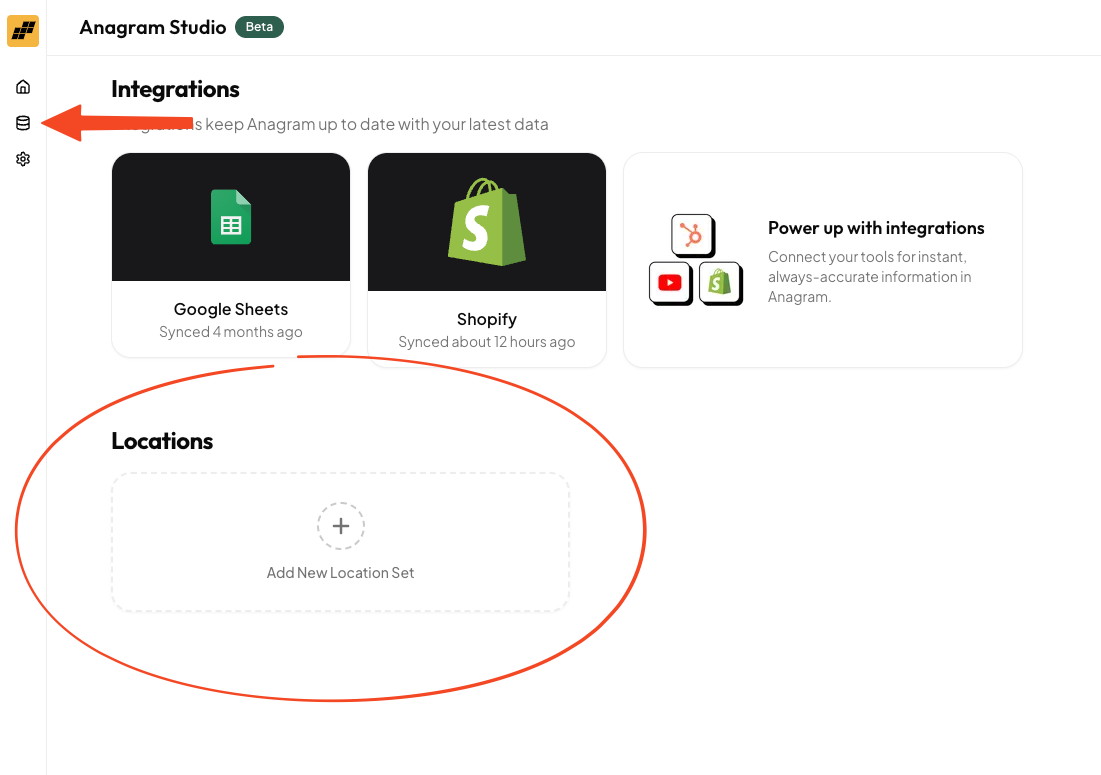
To add location data, first navigate to the Data Hub. In the Locations section, click the button to create a new location set. You can add locations to the set by uploading a CSV or by searching for locations individually. When you upload locations from a CSV, you’ll be prompted to map CSV fields to required fields in Anagram. Each location needs a name and address, which Anagram uses to enrich the rest of the data. You can also optionally add atags column that includes multiple comma-separated tags (for example, Branch, Drive-up, ATM). Users can filter locations by tags in the location widget.
Location matching
When you add locations to Anagram, each one is matched to a Google Maps location. This means locations automatically have up-to-date addresses, phone numbers, websites, hours, and more.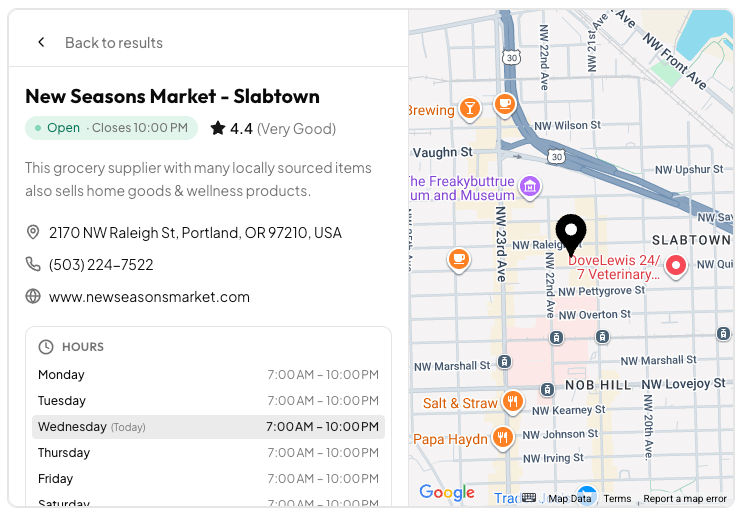
Enabling the skill
When editing an experience in the Anagram Studio, you can enable the Find locations skill. You can then select a location set that you created in the Data Hub. Once the skill is enabled, if a user asks for a location, Anagram will render an interactive location widget.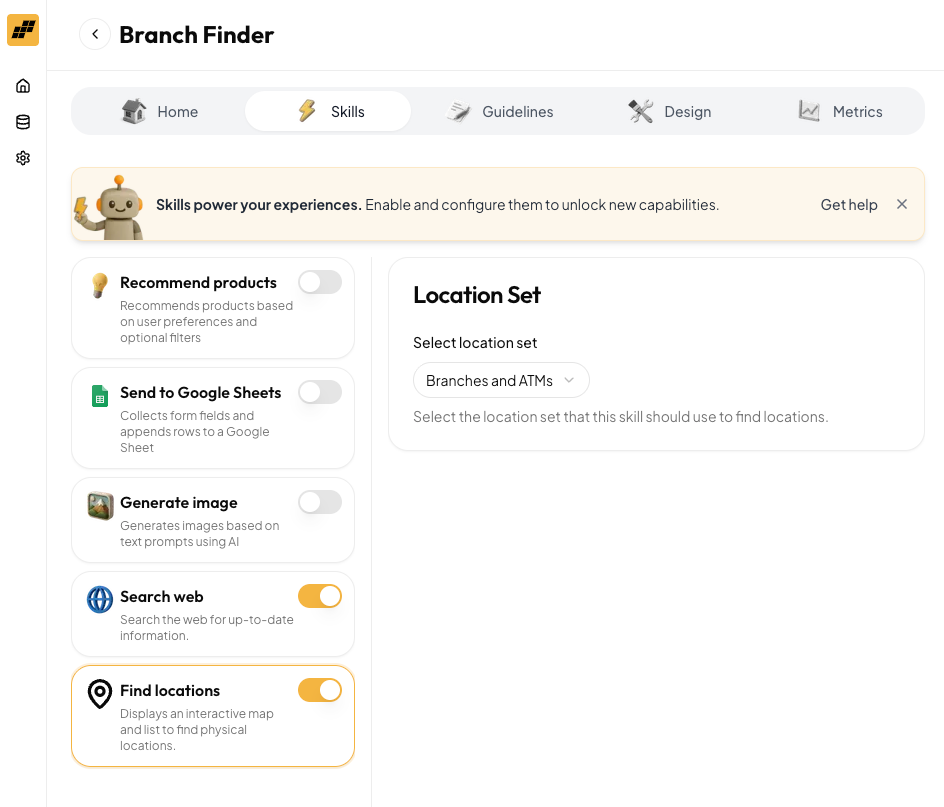
Using the location widget
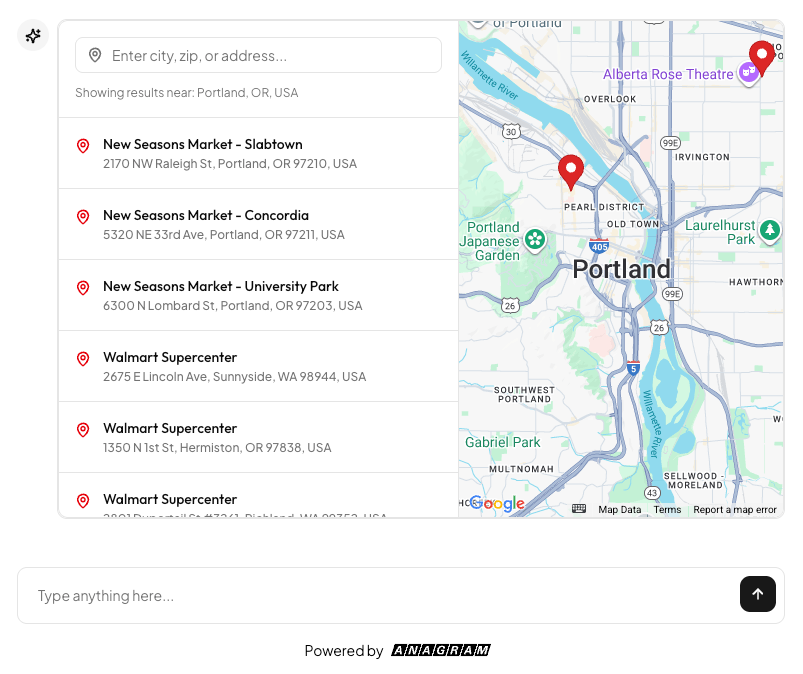
Anagram experiences can render an interactive location widget when it’s relevant to the conversation. The widget can automatically identify the user’s location and show the closest locations to them from the location set. The user can move around the map, search for other locations, filter by tags, and view details about each location. The location details view shows information enriched by Google Maps data, such as address, phone number, website, and hours. There are also clickable buttons to get directions and make a phone call.Location finder as a starting state
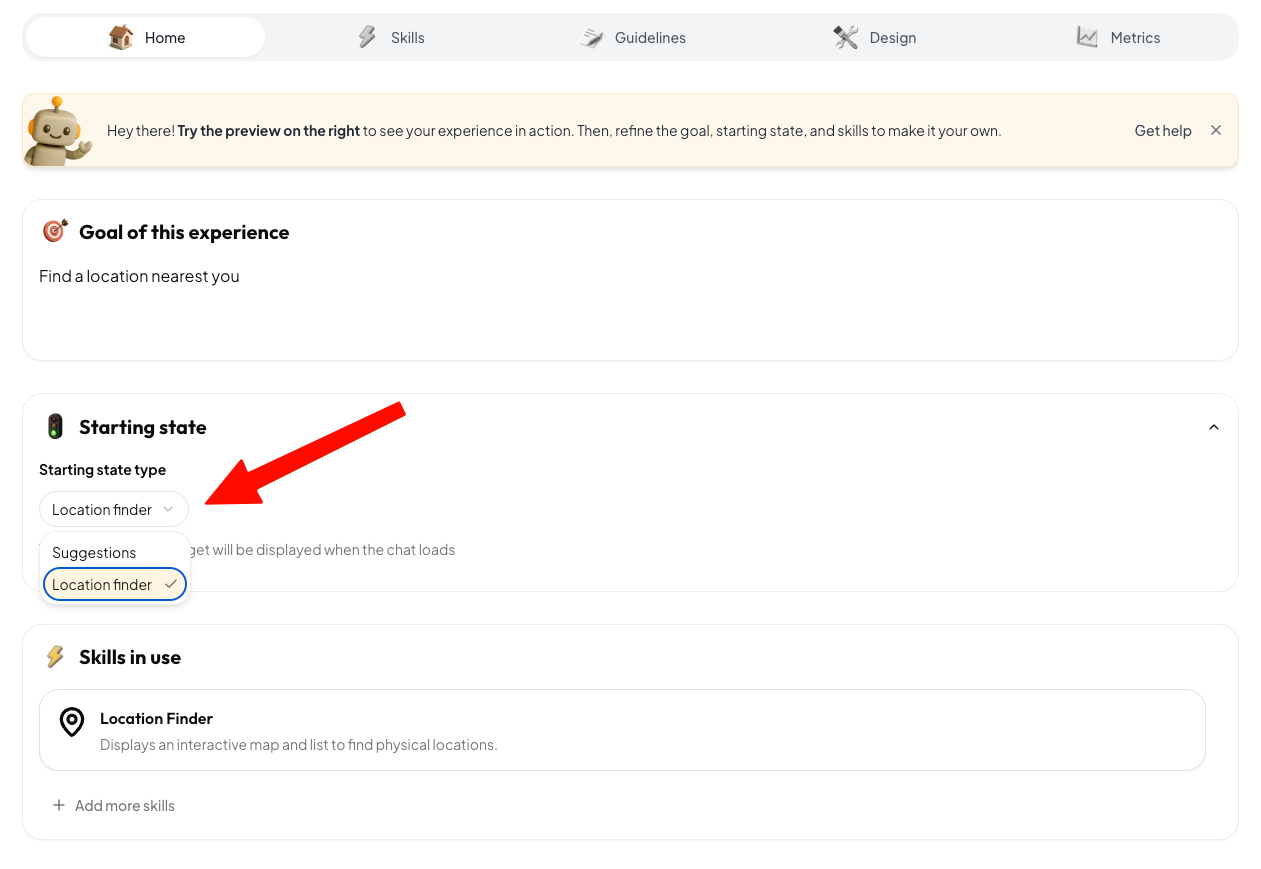
When setting up a location finder experience, you can optionally configure the location widget to be the starting state for the experience. To set this up, you must first enable the “Find locations” skill in the “Skills” tab. Then, on the Home tab, change the starting state type to Location finder. With this setting, Anagram will display the location widget as soon as the experience loads on the page.